
Download Perfect Backup – Free, Secure Windows Backup Tool for Home & Business
Overview – Why Perfect Backup Stands Out in the Crowd
In a world where data loss can cripple a business or erase cherished personal memories, having a reliable backup solution is no longer optional—it’s essential. Perfect Backup answers that call with a free yet feature‑rich Windows application designed to protect files, folders, and entire system images. Unlike many paid utilities that lock core functions behind a subscription, Perfect Backup offers a full suite of backup types—including full, incremental, differential, and real‑time synchronization—without asking for a credit‑card number.
The software’s intuitive wizard‑driven interface lowers the learning curve for beginners while still providing power users with granular control over source filters, compression levels, and encryption settings. Its built‑in ZIP compression reduces the amount of space needed on external drives or cloud buckets, translating into tangible cost savings over time. Moreover, the encryption engine employs AES‑256 standards, ensuring that sensitive documents, financial records, or proprietary code remain unreadable to unauthorized eyes.
Whether you’re a freelancer safeguarding client deliverables, a small office needing scheduled nightly backups, or a home user wanting an effortless way to mirror photos to a NAS, Perfect Backup delivers a secure, automated, and highly configurable experience. The program also shines with its robust reporting system—complete with email notifications that let you monitor backup health without opening the application. In short, Perfect Backup merges simplicity with depth, giving Windows users a trustworthy guardian for their digital assets.
Core Features & Capabilities
Feature List
- Multiple backup destinations: external USB drives, network shares, FTP servers, and major cloud providers.
- Compression via ZIP format to save storage space and reduce transfer time.
- AES‑256 encryption for secure data protection during storage and transit.
- Support for full, incremental, differential, and real‑time synchronization backup types.
- Advanced source filters to include/exclude files based on size, date, extension, or attribute.
- Built‑in task scheduler for automated daily, weekly, or monthly backup jobs.
- Comprehensive reporting dashboard with logs, success/failure stats, and email notifications.
- One‑click restoration wizard for rapid recovery of individual files or entire backup sets.
- Multi‑language interface (English, Spanish, German, French, and more).
- Free updates with security patches and new feature roll‑outs.
Pros
- Completely free for personal and commercial use.
- Rich set of backup types without hidden fees.
- Intuitive wizard makes setup quick for non‑technical users.
- Strong AES‑256 encryption safeguards sensitive data.
- ZIP compression reduces storage costs.
- Flexible scheduling and extensive source‑filter options.
- Detailed logs and email alerts keep administrators informed.
Cons
- No native macOS or Linux client—Windows‑only.
- Cloud integration relies on third‑party services; no built‑in cloud storage.
- User interface, while functional, feels dated compared to modern SaaS tools.
- Limited parallel thread support can slow large batch backups on slower hardware.
Compatibility
Perfect Backup is built exclusively for the Windows platform, supporting Windows 7, Windows 8/8.1, Windows 10, and Windows 11 (both 32‑bit and 64‑bit editions). The installer automatically detects the appropriate architecture and adjusts system requirements accordingly. While the software does not run natively on macOS, Linux, Android, or iOS, it can still back up data to network shares or FTP servers that are accessible from those operating systems, making it a viable component in mixed‑environment backup strategies.
Installation, Configuration & Daily Use
Step‑by‑Step Installation Guide
1. Download the installer from the official Perfect Backup website. The file is a small .exe (approximately 25 MB) that verifies its digital signature before execution.
2.
Run the installer with administrator privileges. The wizard will prompt you to accept the license agreement, choose an installation folder (default is C:\Program Files\PerfectBackup), and decide whether to create a desktop shortcut.
3. Complete the setup by clicking “Install.” The process typically finishes within a minute on modern hardware.
4.
Launch the application and allow it to register the required Windows services for scheduled tasks and email notifications.
Creating Your First Backup Job
Upon first launch, Perfect Backup greets you with a “Create New Backup” wizard. Follow these steps:
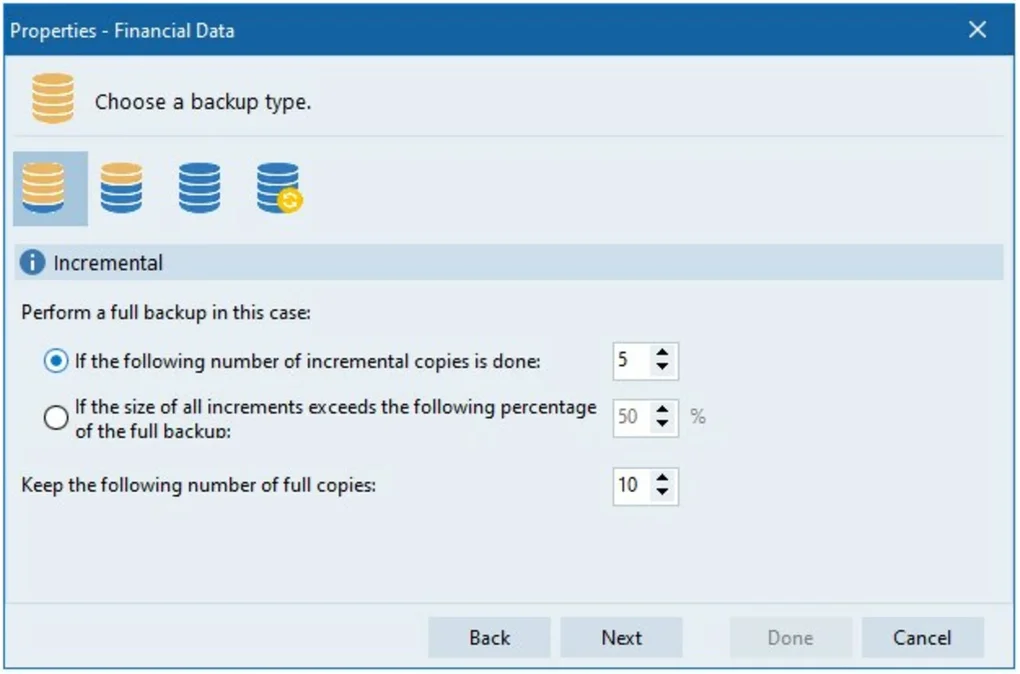
- Select Backup Type: Choose between Full, Incremental, Differential, or Sync. For most users, starting with a Full backup establishes a baseline, after which Incremental backups keep the repository lean.
- Define Source: Browse to the folders you want to protect—documents, pictures, databases, or entire drives.
Use the “Add Filter” button to exclude temporary files, cache folders, or any other data you deem unnecessary.
- Choose Destination: Pick a local external drive, a network share (e.g.,
\\NAS\Backups), an FTP server, or a mapped cloud folder. The wizard offers a preview of available storage space. - Configure Compression & Encryption: Enable ZIP compression and set the desired compression level (Fast, Normal, or Maximum). Turn on “Encrypt Backup” and provide a strong password; the software will generate a 256‑bit key automatically.
- Schedule & Notifications: Set the job to run daily at 02:00 AM, weekly on Sundays, or manually.
Enable email alerts by entering your SMTP server details; you’ll receive a concise success/failure report after each run.
Everyday Restoration
Restoring data is equally straightforward. Open the “Restore” tab, select the backup set (identified by date and description), and choose either “Full Restore” to rebuild the entire source or “Selective Restore” to pick individual files. The built‑in preview lets you browse the compressed archive without extracting everything first. After confirming the destination (original location or a new folder), click “Restore.” The software validates the encryption password, decompresses the files, and restores them with original timestamps and attributes intact. In case of a corrupted archive, Perfect Backup’s integrity check will highlight problematic files, allowing you to re‑run the backup job or retrieve a clean copy from another destination.
Frequently Asked Questions (FAQ)
Is Perfect Backup really free for commercial use?
Yes. Perfect Backup’s licensing model allows both personal and commercial use at no cost. All core features—including encryption, compression, and scheduling—are available without a paid upgrade.
Can I back up to popular cloud services like Google Drive or OneDrive?
Perfect Backup does not contain built‑in cloud connectors, but you can map a cloud storage folder as a local drive (using tools such as Rclone or the native OneDrive sync client) and then select that mapped drive as a backup destination.
How secure is the encryption offered by Perfect Backup?
The software uses AES‑256 encryption, which is considered military‑grade. The encryption key is derived from the password you set, and the password is never stored in plain text. This ensures that only users with the correct password can decrypt the backup archive.
What happens if a scheduled backup fails?
When a job fails, Perfect Backup logs the error details, sends an email notification (if configured), and automatically retries the job based on the retry settings you define. You can also view the failure reason in the “Report” tab and manually restart the job after fixing the issue.
Is there a way to test the backup integrity before restoring?
Yes. Perfect Backup includes an “Integrity Check” option that scans the selected backup set, verifies checksums, and reports any corrupted files. Running this check periodically helps ensure your data can be restored when needed.
Conclusion & Call to Action
Perfect Backup delivers a compelling mix of affordability, security, and flexibility that is rare in the Windows backup market. Its comprehensive feature list—ranging from multi‑destination support and powerful compression to AES‑256 encryption and granular scheduling—covers the needs of both home users and small‑to‑medium enterprises. While the lack of native macOS or Linux clients might be a drawback for heterogeneous environments, the ability to back up to network shares or FTP servers mitigates that limitation for many cross‑platform setups. The user‑friendly wizard lowers the barrier to entry, and the detailed reporting system keeps administrators informed without demanding constant manual checks. In an era where data breaches and accidental deletions are increasingly common, having a free, reliable, and secure backup solution like Perfect Backup is a strategic advantage.
Ready to safeguard your files without spending a dime? Download Perfect Backup now, configure your first backup job in minutes, and enjoy peace of mind knowing your data is protected by industry‑standard encryption and resilient storage options. Keep your system updated to benefit from regular security patches, and explore the built‑in FAQ for quick answers to common questions. Your data deserves the best defense—make Perfect Backup your first line of protection today.
Pros: Free for commercial use, robust encryption, ZIP compression, extensive scheduling, detailed reports.
Cons: Windows‑only, no native cloud integration, dated UI.







